
💡 Good to know: Tax mapping is done per property. You need to assign a tax class to each fee for VAT to appear on invoices and booking breakdowns.
What Is This For?
Account Tax Mapping lets you assign a tax definition (e.g. VAT 5%) to each fee account on a property. This is what tells Atlas PMS how much tax to apply to each individual charge.
Without this step, even if Tax Registration is enabled at the business level, your fees won’t show a VAT breakdown in booking details or on invoices.
⚠️ Tax mapping must be completed for each property separately. It doesn’t automatically carry over from your business settings.
How to Set Up Account Tax Mapping
1. Go to Properties in the left-hand menu
2. Click Properties
3. Find the property and click the edit (✏️) icon on the right
4. Click the Financial tab at the top of the property page
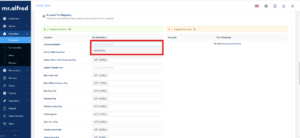
5. Scroll down to the Account Tax Mapping section
6. For each fee in the Income Accounts list, click the Tax Definitions field and select the applicable tax (e.g. VAT 5.00%)
7. Repeat for all fees that should have VAT applied
8. Scroll down and click Save
What You’ll See After Setting This Up
Once tax definitions are assigned to your fee accounts:
● VAT breakdowns appear in booking details for each applicable fee
● Invoices show the correct tax amount per line item
● The Tax Summary section on invoices will reflect the total VAT collected
A Few Things to Keep in Mind
Fees with no tax definition assigned will have no VAT applied — even if other fees on the same property do.
You can assign different tax classes to different fees if needed. For example, City Tax may have a different tax treatment than a Cleaning Fee.
💡 The tax definitions available in the dropdown are managed in your Chart of Accounts. If you don’t see the tax class you need, contact your mr.alfred account manager to have it added.
Still Have Questions?
Reach out to your mr.alfred account manager or email us at support@mralfred.com — we’re happy to walk you through it!