
💡 Good to know: These settings apply per property. Changes only affect bookings whose invoices have not been generated yet — already-invoiced bookings are not affected.
What Is This For?
The Financial tab in each property lets you control three key invoice settings:
● Whether a separate management fee invoice is generated for each booking
● Who appears as the issuer on the accommodation invoice — the host or the property manager
● Where the channel commission is placed — on the accommodation invoice or the service invoice
How to Get There;
1. Go to Properties in the left-hand menu
2. Click Properties
3. Find the property you want to update and click the edit (✏️) icon on the right
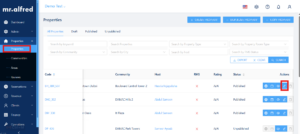
4. Click the Financial tab at the top of the property page
5. Scroll down to the Invoice Settings section
The Three Invoice Settings Explained
1. Create Management Fee Invoice per Booking
Toggle this to Yes if you want Atlas PMS to automatically generate a separate management fee invoice for every booking on this property.
If set to No, no management fee invoice will be generated for bookings on this property.
2. Accommodation Invoice Issuer
This controls whose name appears as the supplier on the accommodation invoice sent to the guest.
● Host — select this if the property owner (host) is VAT-registered. The host’s name and TRN will appear on the accommodation invoice.
● Property Manager — select this if the host is not VAT-registered. The property management company’s details will appear on the accommodation invoice instead.
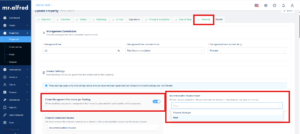
3. Channel Commission Invoice
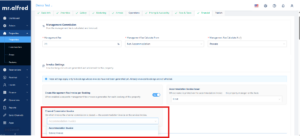
This controls which invoice the OTA/channel commission fee is placed on.
● Accommodation Invoice — the channel commission appears on the accommodation invoice, which is issued by the host/property owner.
● Service Invoice — the channel commission appears on the service invoice, which is issued by the property manager.
Don’t Forget to Save!
Once you’ve configured all three settings, scroll down to the bottom of the Financial tab and click Save. These settings will apply to all future bookings on this property.
⚠️ Changes to Invoice Settings only apply to bookings that haven’t been invoiced yet. If a booking already has an invoice, it will not be affected.
Still Have Questions?
Reach out to your mr.alfred account manager or email us at support@mralfred.com — we’re happy to walk you through it!