
💡 Good to know: Invoices are now generated automatically — you don’t need to create them manually for every booking.
What’s New?
Starting with the Finance Module update, every eligible booking automatically generates two separate invoices at the end of each month. Previously, you had one combined invoice. Now, they’re split so the billing is clearer for both you and your guests.
The Two Invoices Explained:
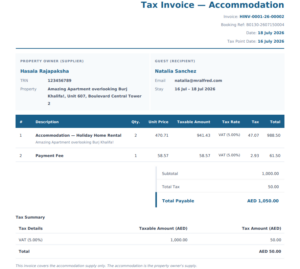
Invoice 1 — Accommodation Invoice
Issued by: Host → Guest
Covers the room nights only — the cost of the stay itself.
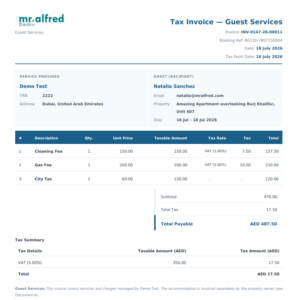
Invoice 2 — Services Invoice
Issued by: Property Manager → Guest
Covers all extra fees, including:
Service fees, Management fee, City tax, Channel fees, Payment-processing fees, etc.
When Does a Booking Get Invoiced?
Invoices are generated automatically at the end of each month, but only when all four of these conditions are met:
- Confirmed Booking status is Partially Paid or Fully Paid
- No invoice has already been issued for this booking
- The booking is not an excluded imported past booking
⚠️ If any of these conditions aren’t met, no invoice will be generated — so make sure your bookings are confirmed and payments are logged correctly!
Need to Generate an Invoice Right Now?
You don’t have to wait until the end of the month. If a guest requests an invoice before their check-in date, you can generate one on the spot:
1. Open the booking — go to the Booking Details page
2. Scroll down — find the Documents section
3. Click Generate Now
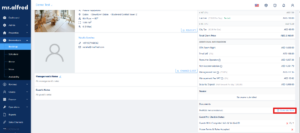
⚠️ The Generate Now button only appears if the booking meets all eligibility conditions above. If an invoice has already been created, the button will be hidden — duplicates can’t be created.
A Few Things to Keep in Mind
Invoices are always the full amount. An invoice shows the total bill — it’s not the same as a payment. Payments are tracked separately.
Each invoice has its own unique number. Host and property manager invoices use separate numbering sequences. Once issued, the number is locked and can’t be changed.
The invoice date Set at business level — either the Booking Date or the Check-in Date — consistent across all your properties.
What Happens if a Booking Changes After Invoicing?
Once a booking has been invoiced, it becomes locked and can’t be freely edited. Here’s what happens automatically:
1. The booking is locked — it can’t be freely edited
2. A credit note is auto-generated — to cancel the original invoice
3. A new invoice is generated — reflecting the updated booking
⚠️ Important: A booking can only be modified once after invoicing. After that, further changes are blocked. Contact support@mralfred.com and we’ll help you sort it out.
Still have questions?
Reach out to your mr.alfred account manager or email us at support@mralfred.com — we’re happy to walk you through it!